
Safari Installation Guide
Welcome! This guide will walk you through installing the "Again, Why Salesforce" Safari extension on macOS.
Because this app is not distributed through the Mac App Store, there are a few extra steps to enable it — especially for Safari.
Don't worry! Follow the instructions below and you'll be up and running in just a few minutes.
Follow the GIF
Here's a GIF for reference.
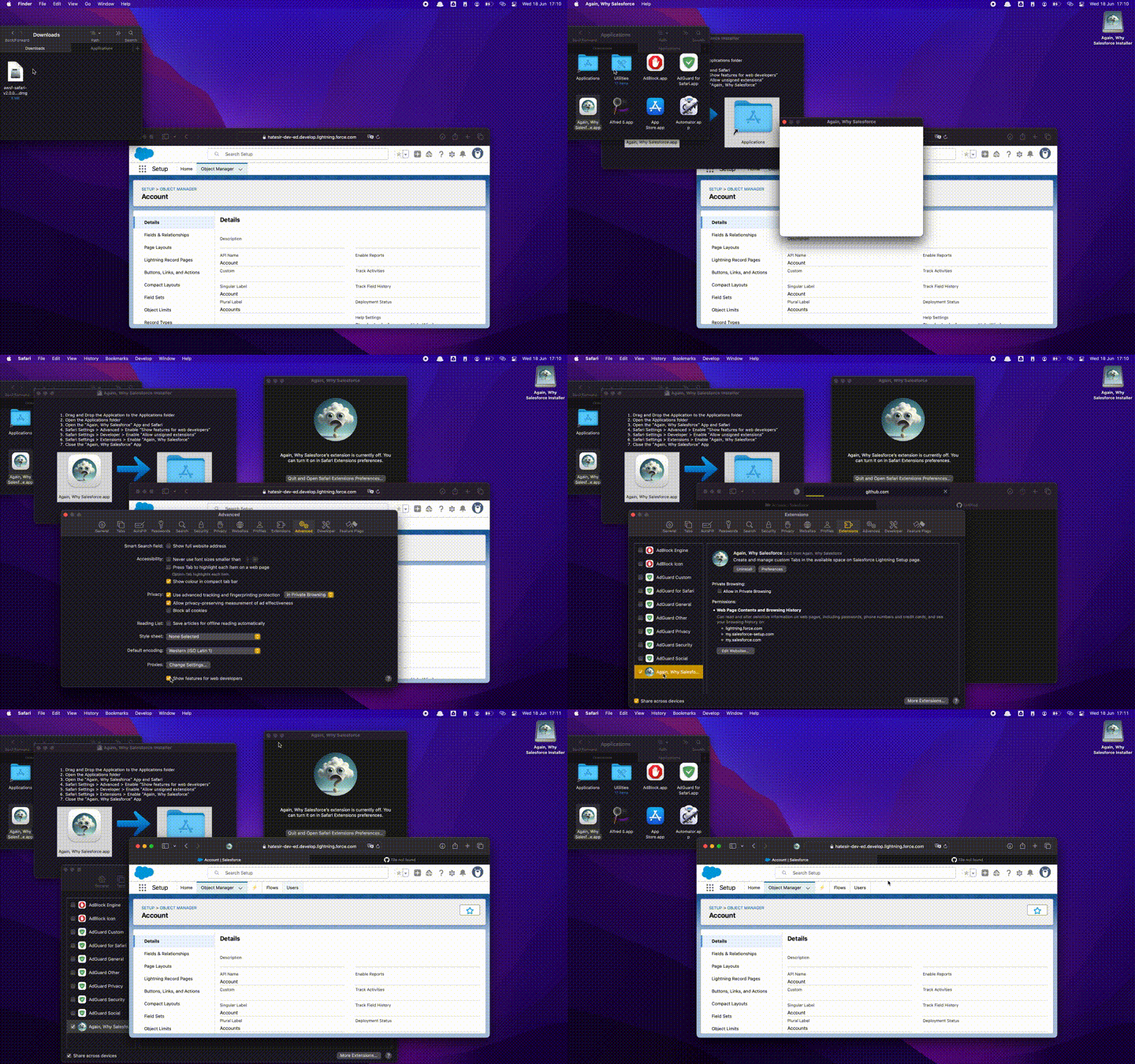
Download the Installer
Open the releases page and find the latest release for Safari.
The release name follows this pattern: awsf-safari-v?.?.?.dmg (you'll find numbers instead of the "?").
Open the Installer
Once downloaded, double-click the .dmg file to open it.
🛑 If macOS Prevents the App from Opening
When you try to open the app, macOS may show a warning like:
"Again, Why Salesforce" can't be opened because it is from an unidentified developer.
You have two options to bypass this:
✅ Option 1: Use Control-Click to Open
- Go to your Applications folder.
- Control-click (or Right-click) on "Again, Why Salesforce".
- Select Open from the context menu.
- A warning dialog will appear, but this time you'll see an Open button. Click it.
💡 You only need to do this once — after that, macOS will allow the app to open normally.❗ This operation will have to be repeated for future releases.
🛠 Option 2: Use System Settings
If the above method doesn’t work, follow these steps:
- Open System Settings (or System Preferences on older macOS).
- Go to Privacy & Security.
- Scroll down to the Security section.
- You’ll see a message about the blocked app — click "Open Anyway".
- Confirm in the pop-up by clicking Open.
💡 Again, this only needs to be done once.❗ This operation will have to be repeated for future releases.
Drag and Drop the Extension App into the Applications Folder
In the opened window, drag and drop the "Again, Why Salesforce" application into the Applications folder.
Open the Extension App
Navigate to the Applications folder and open the "Again, Why Salesforce" app.
Then, open Safari as well.
Setup Safari
- Open Safari.
- Go to
Safari > Settings(orSafari > Preferences). - Navigate to the Advanced tab.
- ✅ Enable "Show features for web developers".
- Go to the Developer tab.
- ✅ Enable "Allow unsigned extensions".
- Open the Extensions tab.
- ✅ Enable "Again, Why Salesforce".
🔄 Still Not Seeing the Extension?
If the extension does not appear in Safari:
- Make sure the "Again, Why Salesforce" app is still running.
- Close and reopen Safari.
- Repeat the setup steps above.
Close the Extension App
After enabling the extension in Safari, you can close the "Again, Why Salesforce" app.
Enjoy!
Open your Salesforce org and navigate to the Setup page. The extension should now be active and enhance your experience.